 Move Welcome to Fizzy
Open Welcome to Fizzy
Fizzy’s a refreshing take on cards, columns, and kanban.
Sure, there are plenty of apps out there to help you track issues, ideas, bugs, and small projects. You might have tried a bunch already. But Fizzy? It’s different. Intentionally different.
We designed Fizzy to be fast, simple, colorful, and downright enjoyable so tracking work actually feels good again.
Now, let's get started!
Watch the Fizzy tour and walkthrough here!
Welcome to Fizzy
88 words
Move Home
Open Home
After logging in, you'll land on the Activity screen. You'll see what’s been added, updated, and closed, with the most recent updates at the top. The activity feed updates in real-time, with gaps indicating no activity.
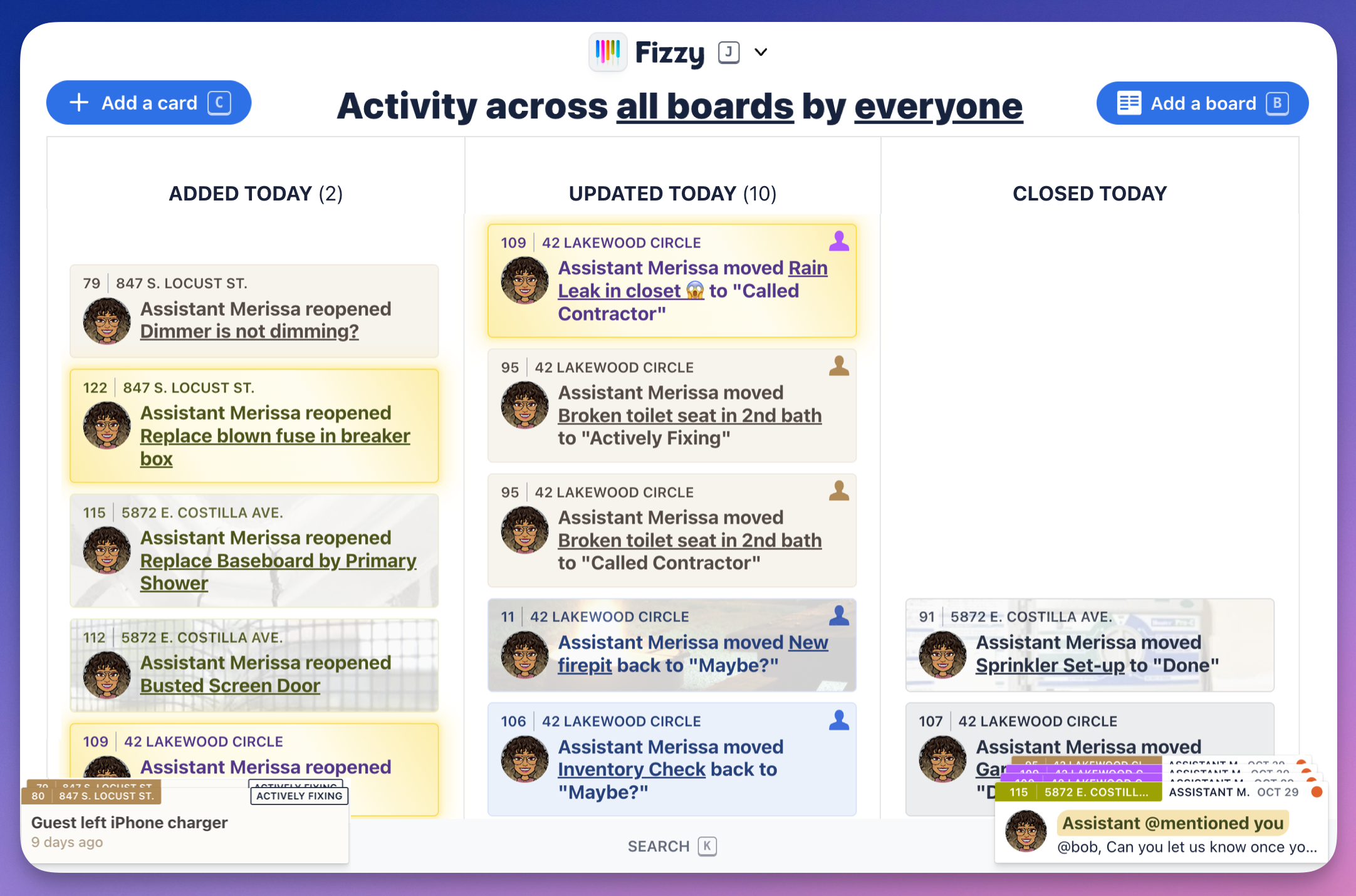
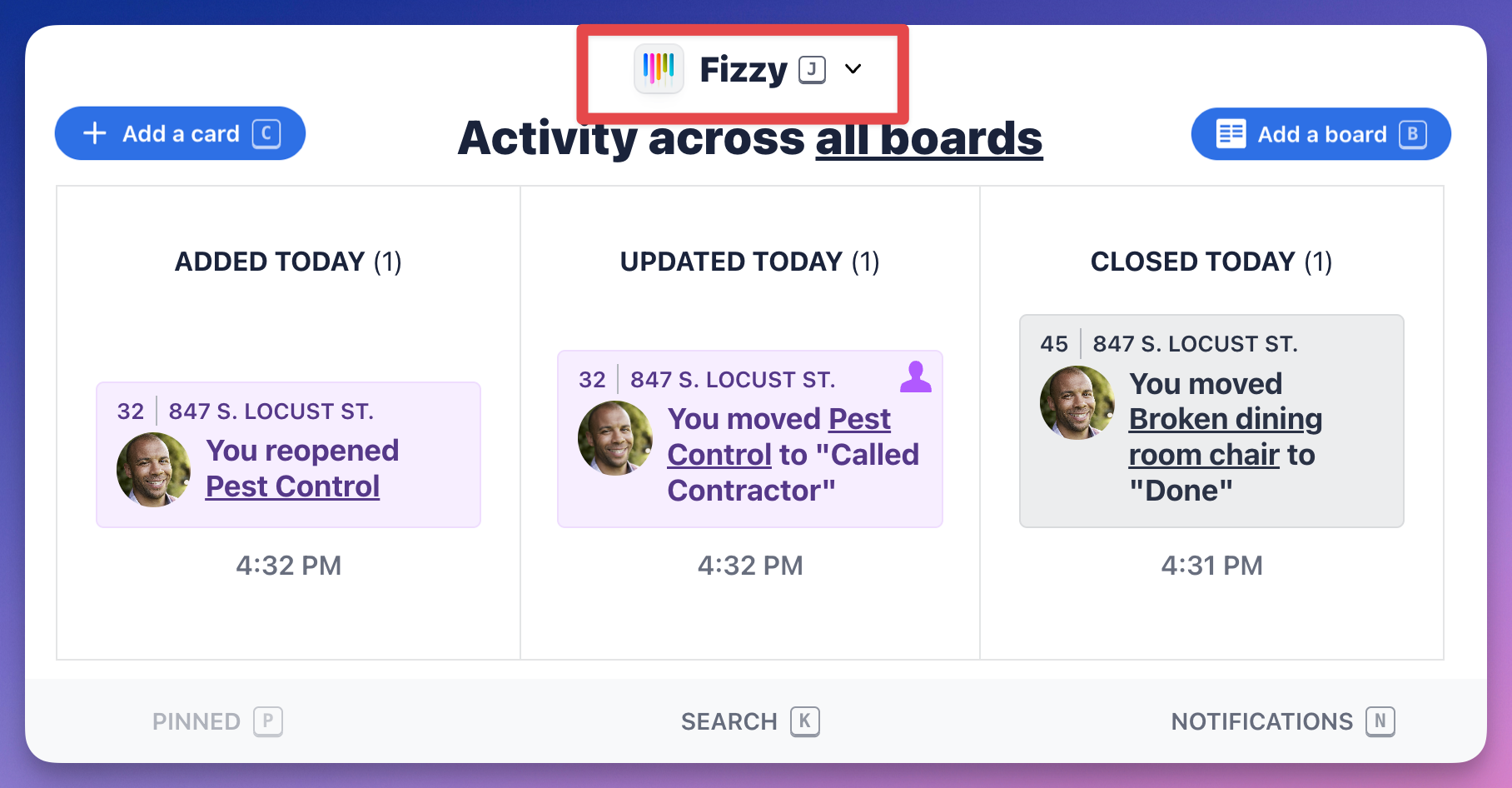
By default, you'll see the activity for everyone's cards from all the boards that are available to you. You can switch to specific boards by clicking the all boards link and selecting the board from the drop down menu. Click the everyone link to see the cards from a specific person.
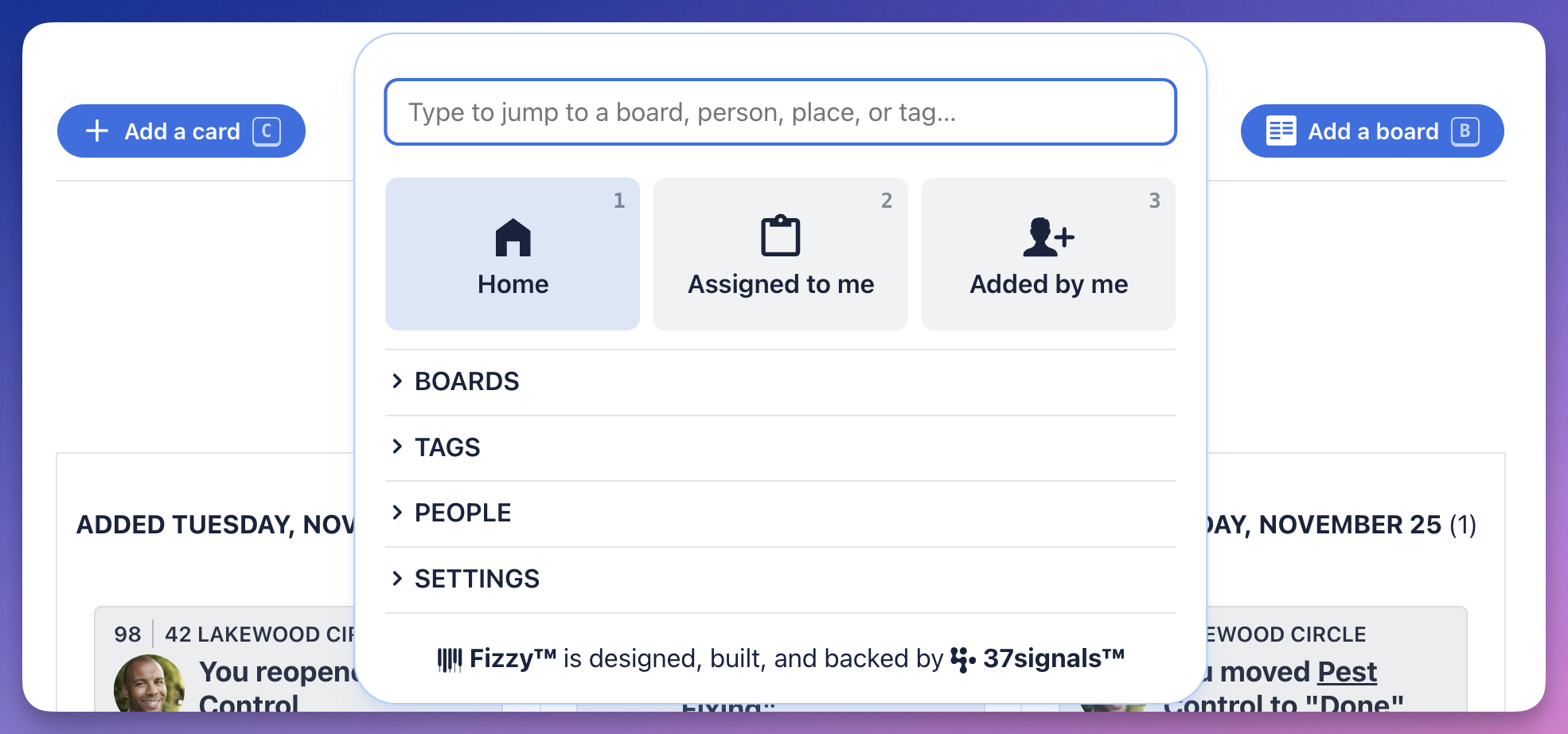
The menu is accessible on every page and lets you see the cards that are assigned to you, ones you've assigned to others, boards, tags, people and more. Use the keyboard shortcuts to move around Fizzy even faster.
If you're working in multiple Fizzy accounts, you'll see an Accounts section at the bottom of the menu. Click to expand the section, then select the account you want to switch to.

To search Fizzy, click Search from the bottom menu or press K on your keyboard to bring up the search bar.
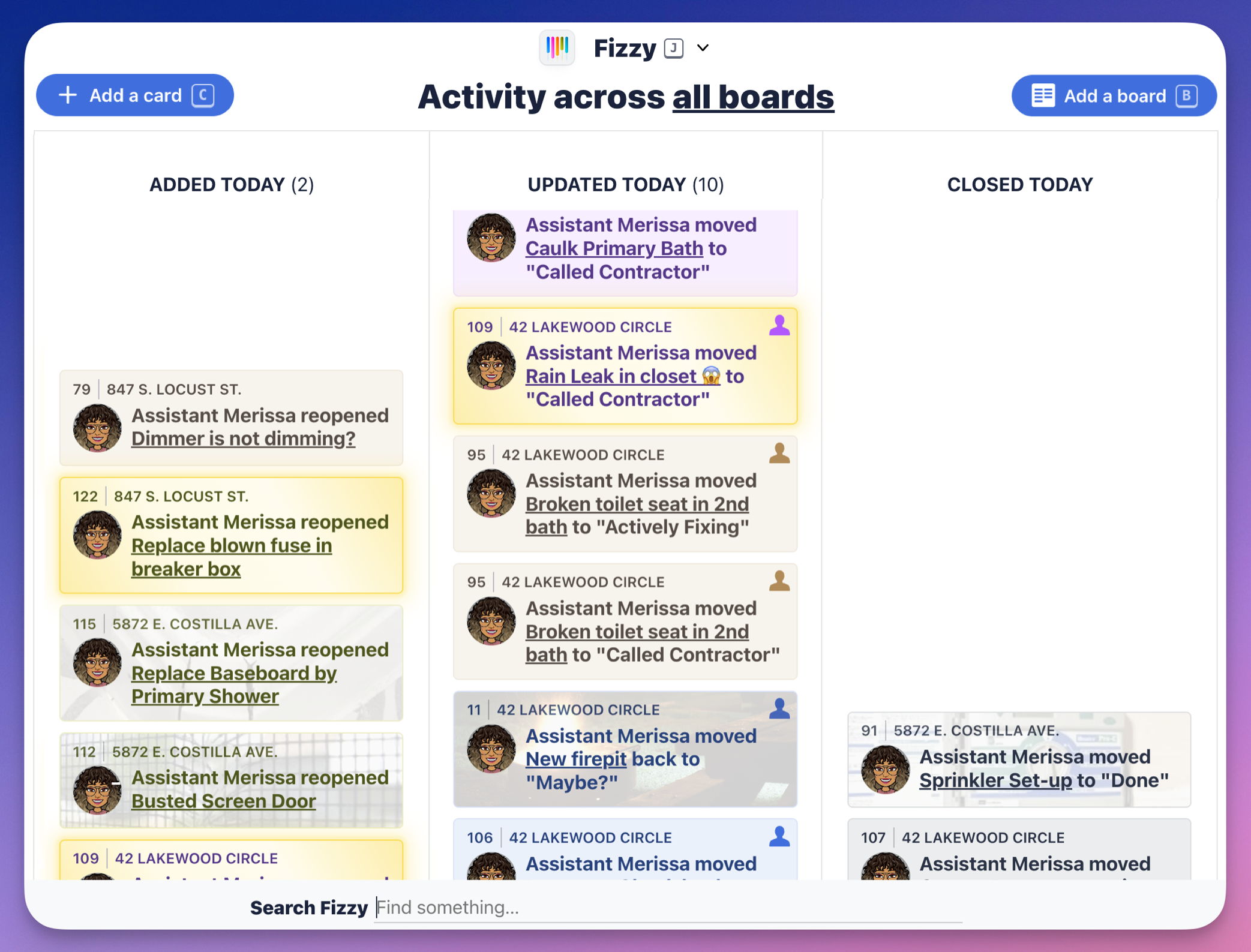
Searching
120 words
Move Adding & Viewing
Open Adding & Viewing
Boards organize your cards and help you follow the progress. Cards can be used to track issues, bugs, ideas, features, projects, or even chores — anything that needs to get done.
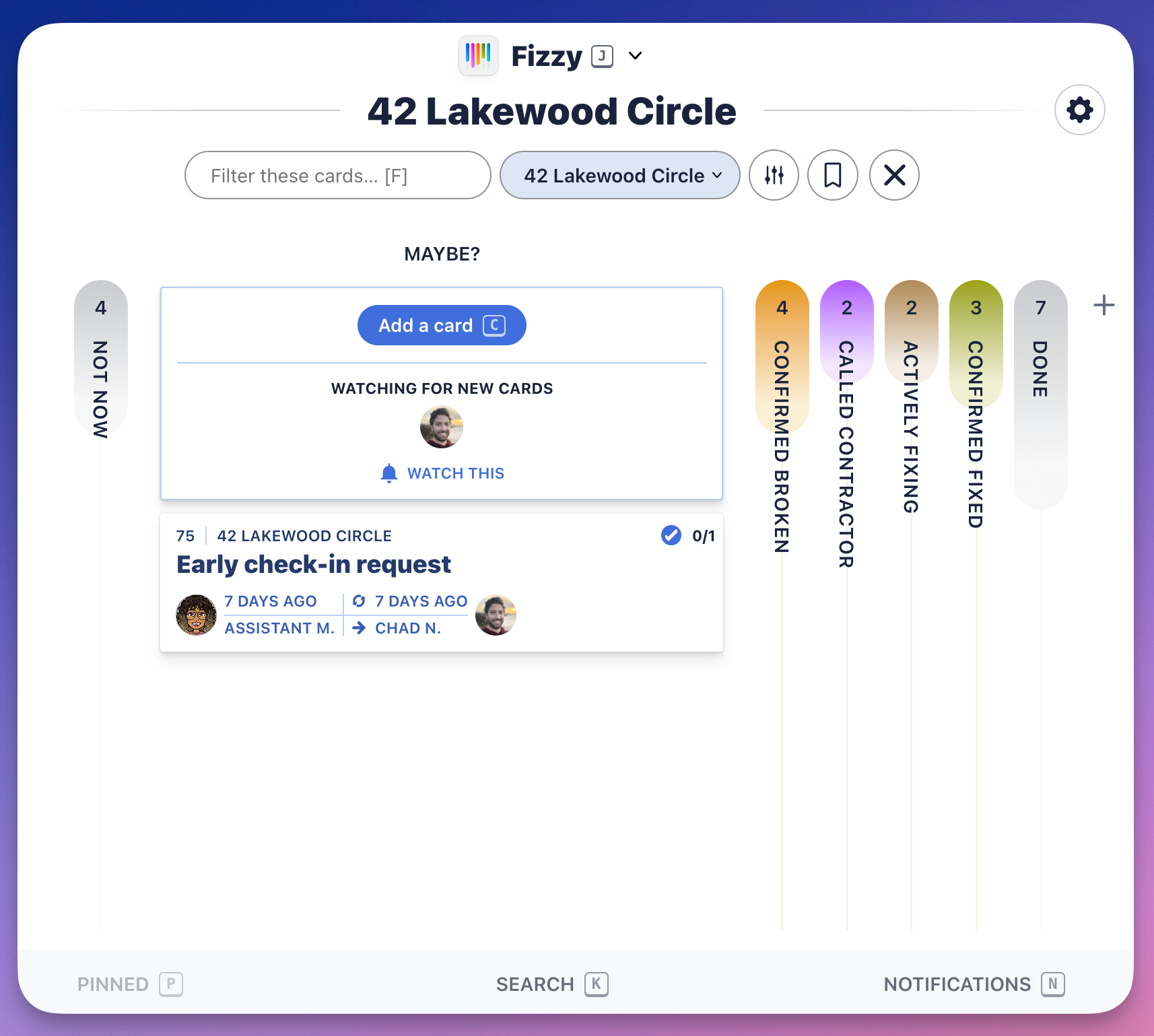
Add a board
With Fizzy, it's all about ease. Create boards in three different ways: open the Fizzy menu (J) and click +Add a board; head to your Home Screen and click the Add a board button; or press B on your keyboard from the Home Screen or any activity page.

Everyone can see who has access to the board, what the auto-close settings are for cards on this board, and whether a public link is enabled.
Administrators can change the board's settings and delete the board.
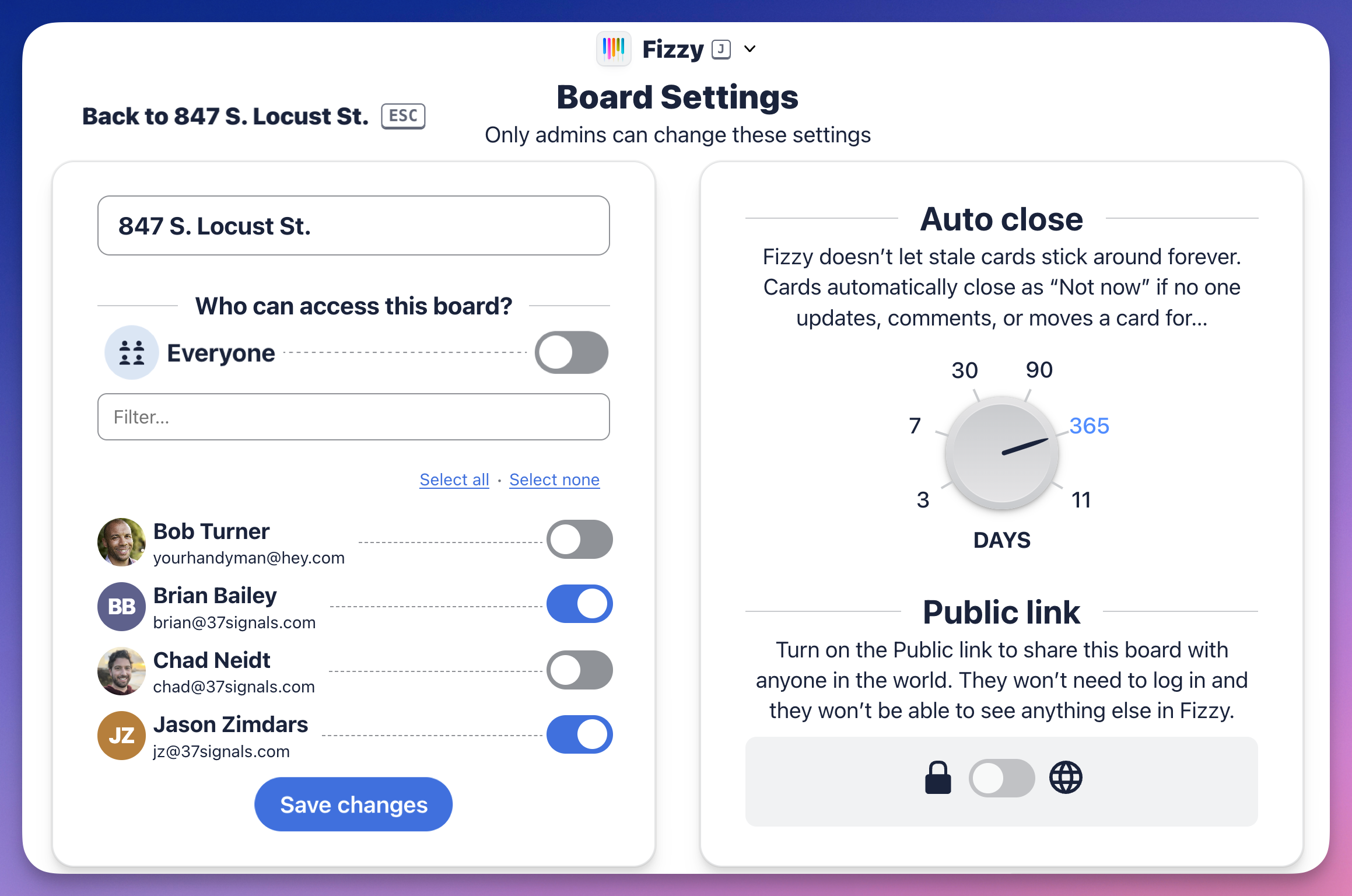
Board Settings
69 words
Move Adding & Assigning
Open Adding & Assigning
Getting things done just feels better with Fizzy — and you’ll do it all using cards.
Cards are simple and have everything you need to make progress — add steps, post comments, assign the card to someone else, and more! We've raised the bar and you'll really feel it after creating your first card.
Add a new card
Similar to boards, we've made it easy to create cards. You can make a new card from the Home Screen or from a board — click the Add a card button or hit
Adding & Assigning
226 words
Move Tagging & Editing
Open Tagging & Editing
Tag a card
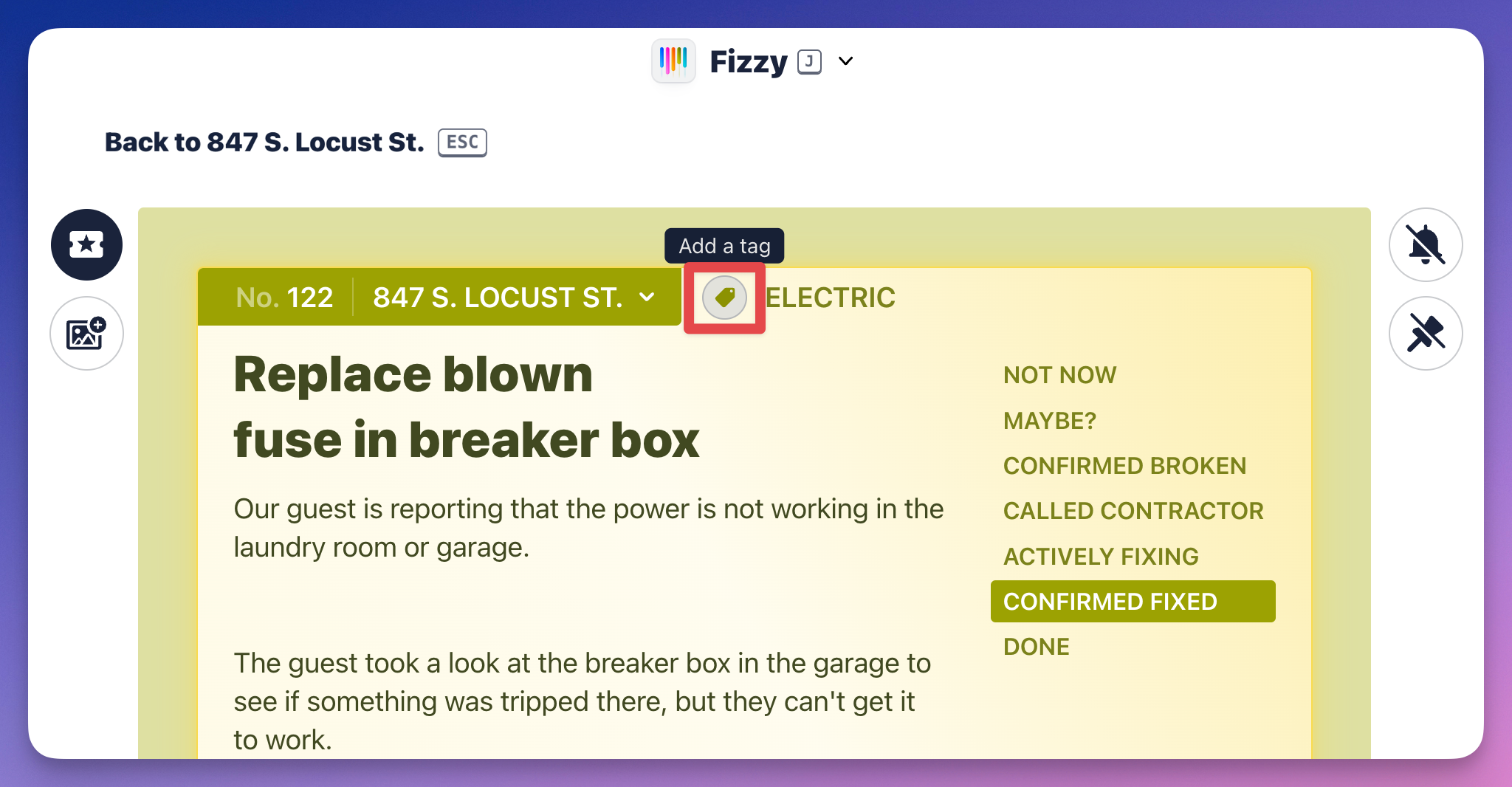
Save time by grouping related cards together using tags. For example, an electrician can open the Fizzy menu, select the Electric tag, and they'll see all the electrical needs across all boards in a snap.
Add a tag by clicking the "tag" icon located at the top of the card or by hitting T on your keyboard. This'll open a menu where you can add a new tag, select an existing tag, and remove a tag.
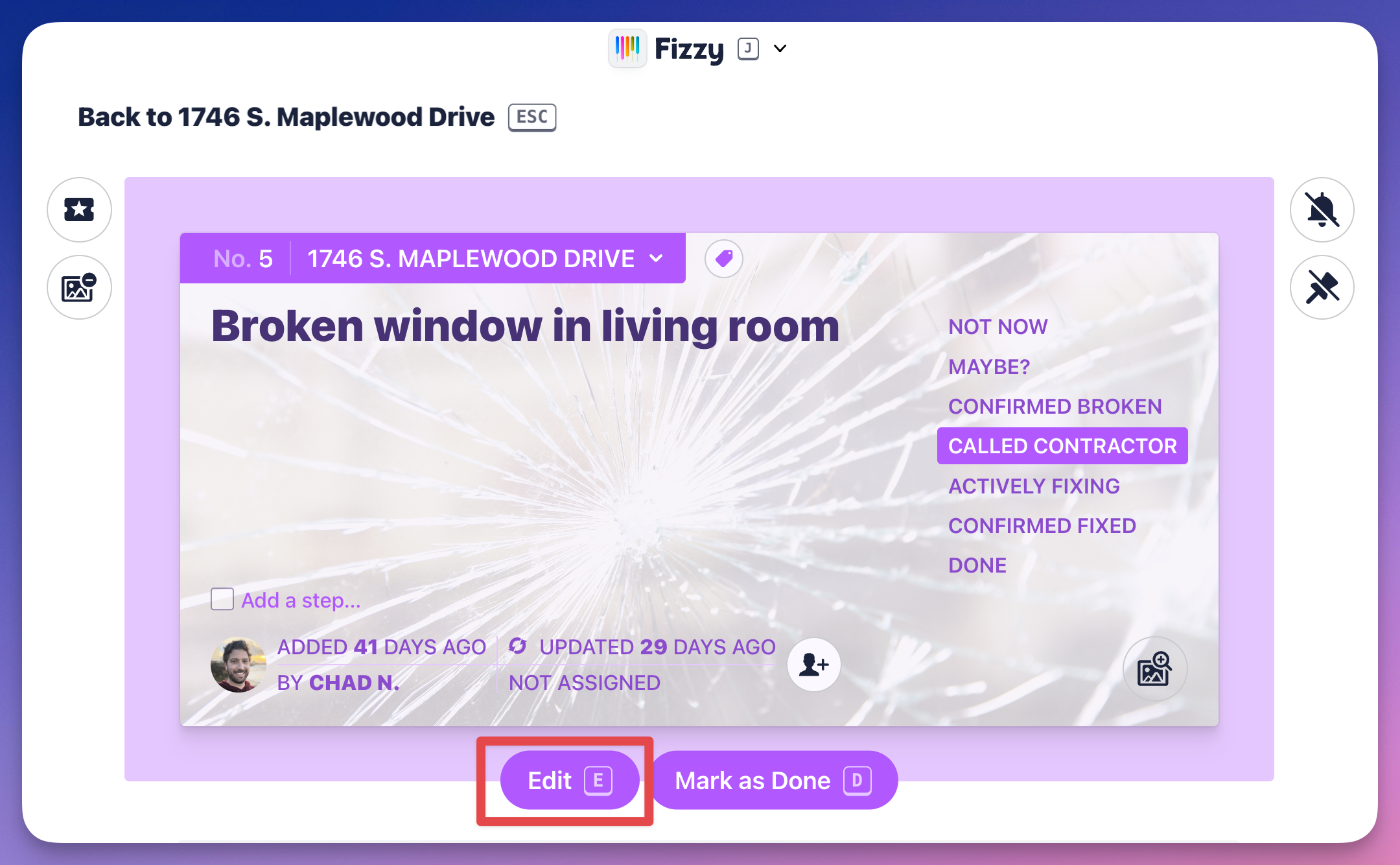
Edit a card
You've got three options here: click the card title to open the text editor; click the Edit button; or press E on your keyboard. Any of these actions will open the text editor.
Save your changes by hitting CMD + Return (Mac) or CTRL + Enter (Windows) on your keyboar
Tagging & Editing
257 words
Move Moving & Prioritizing
Open Moving & Prioritizing
Move a card
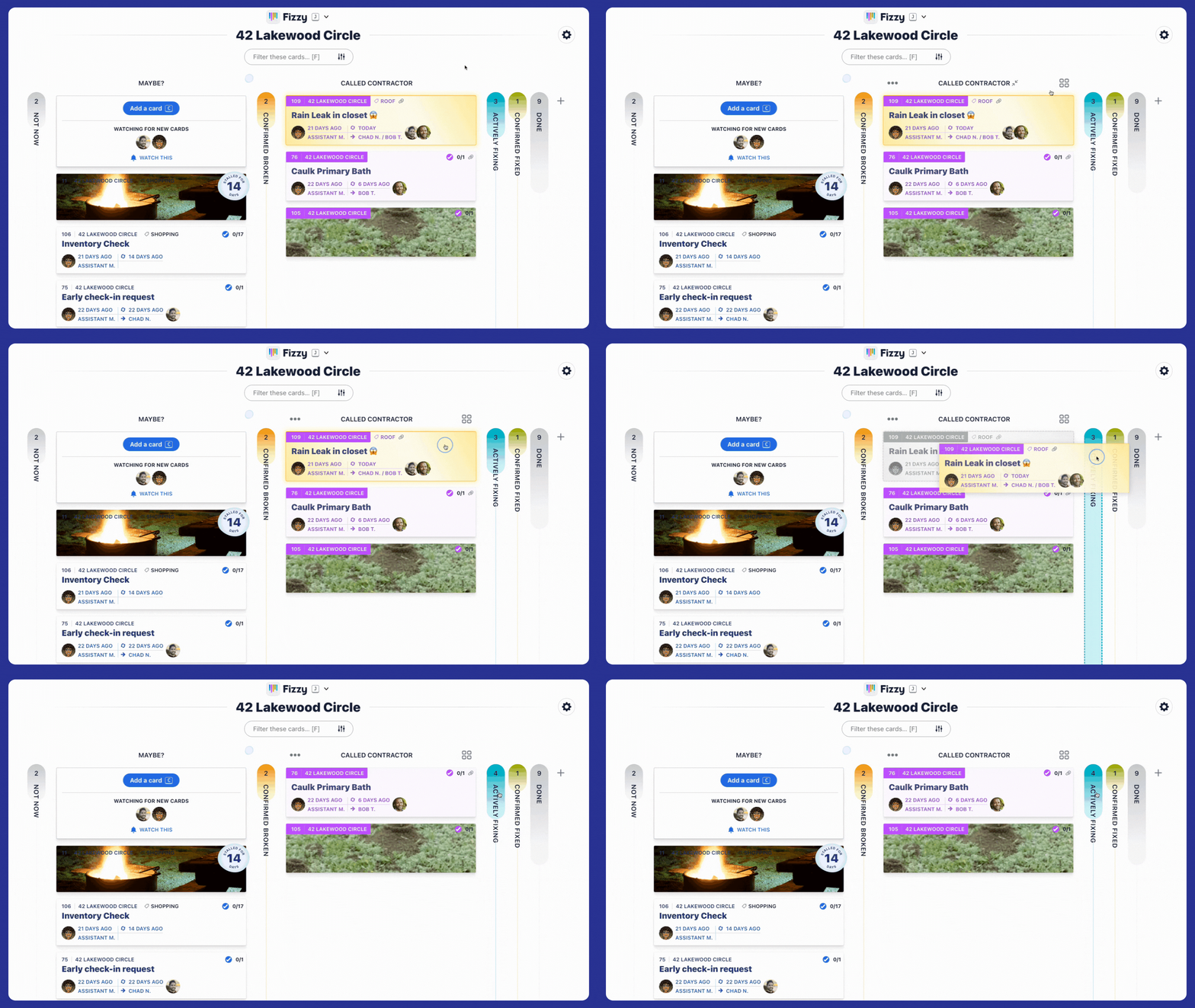
As work progresses, you'll move it to a different column so you can quickly see its status on the board. When looking at a board, simply drag and drop a card between columns to move it.
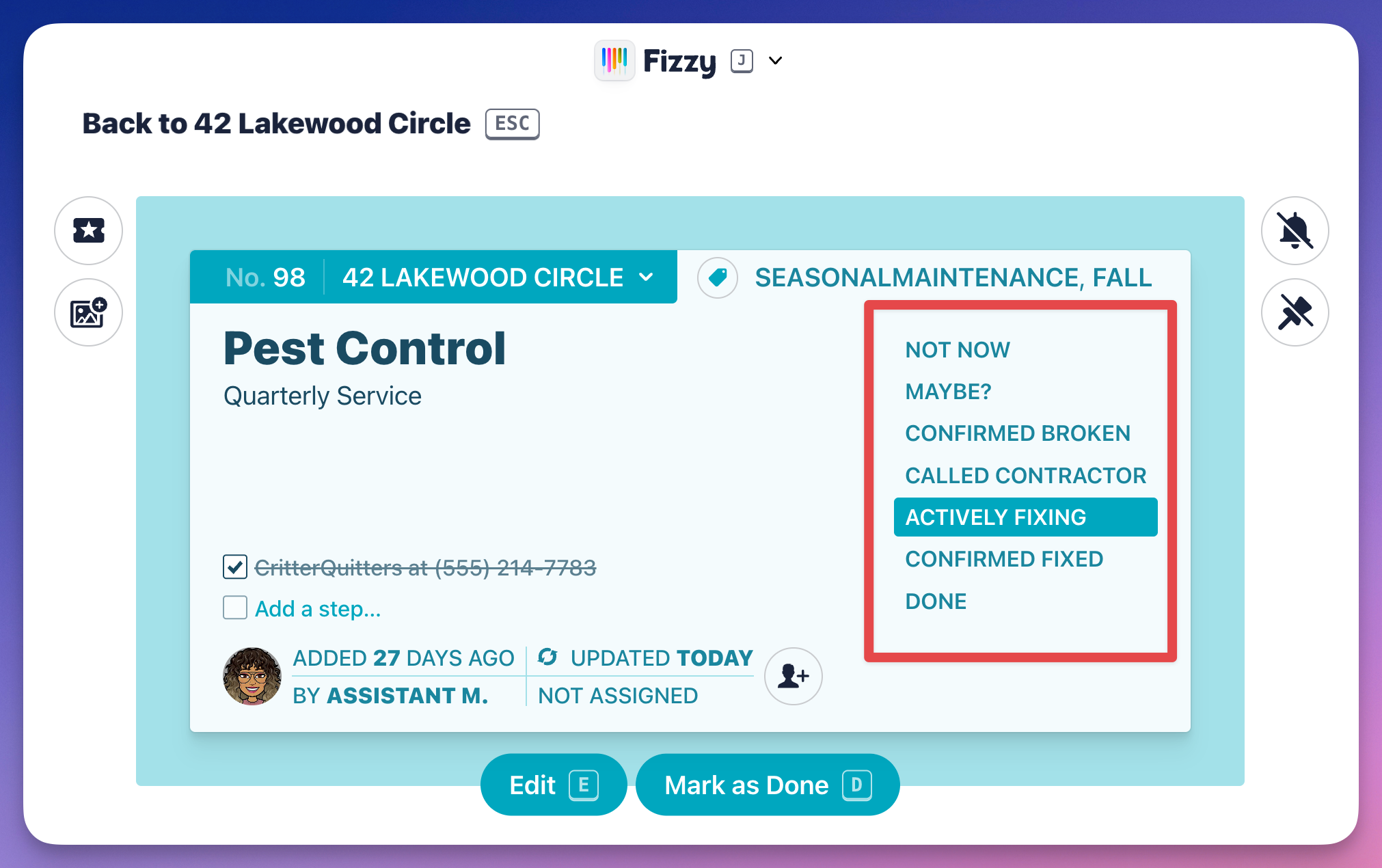
Already have a particular card open? Click a column from the list on the right to move it.
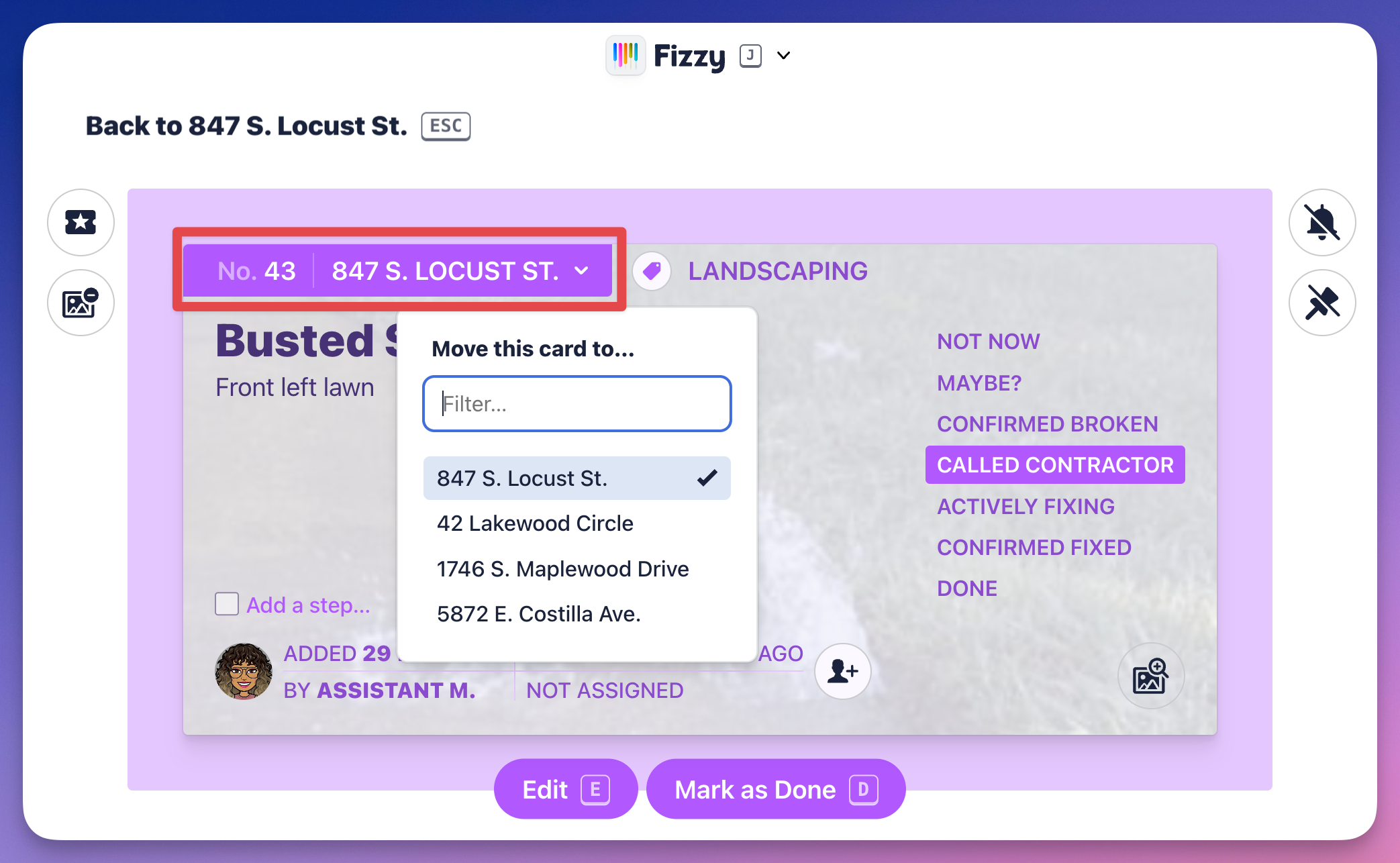
Sometimes, you'll want to move a card to another board. To do that, click the board banner on the top-left and select the new board from the drop-down menu.
When a card is moved to a different board
Moving & Prioritizing
289 words
Move Watching & Pinning
Open Watching & Pinning
Get notified
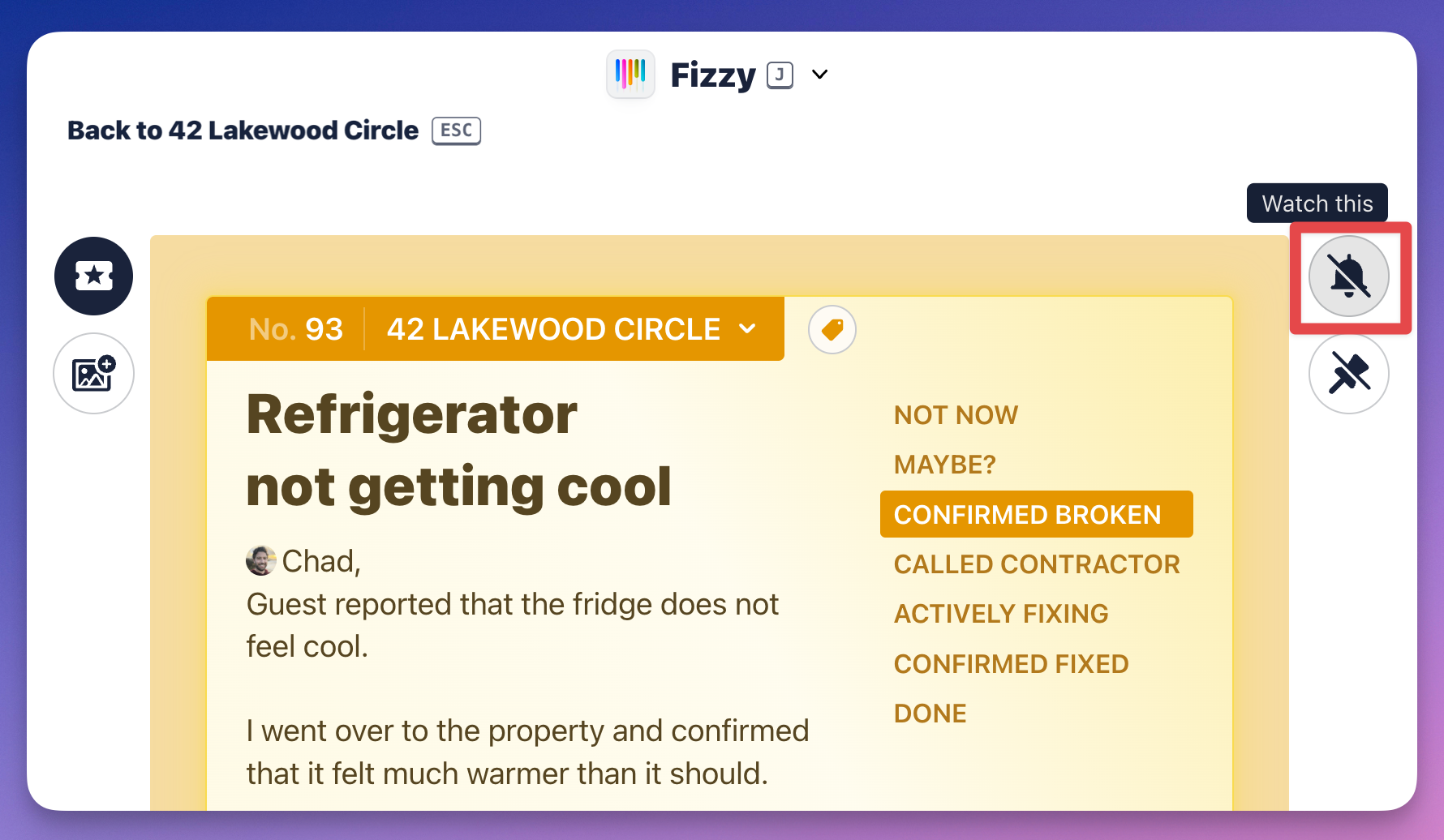
Stay focused by watching just the cards that are relevant to you. Click the "notify" icon to watch a card. You'll then receive notifications when there's new activity there.
Pin your card
Access your important cards by pinning them. Click the "pin" icon on any card and it'll move it to the Pin stack located on the bottom-left. You'll always see your pinned cards there no matter where you are in Fizzy.
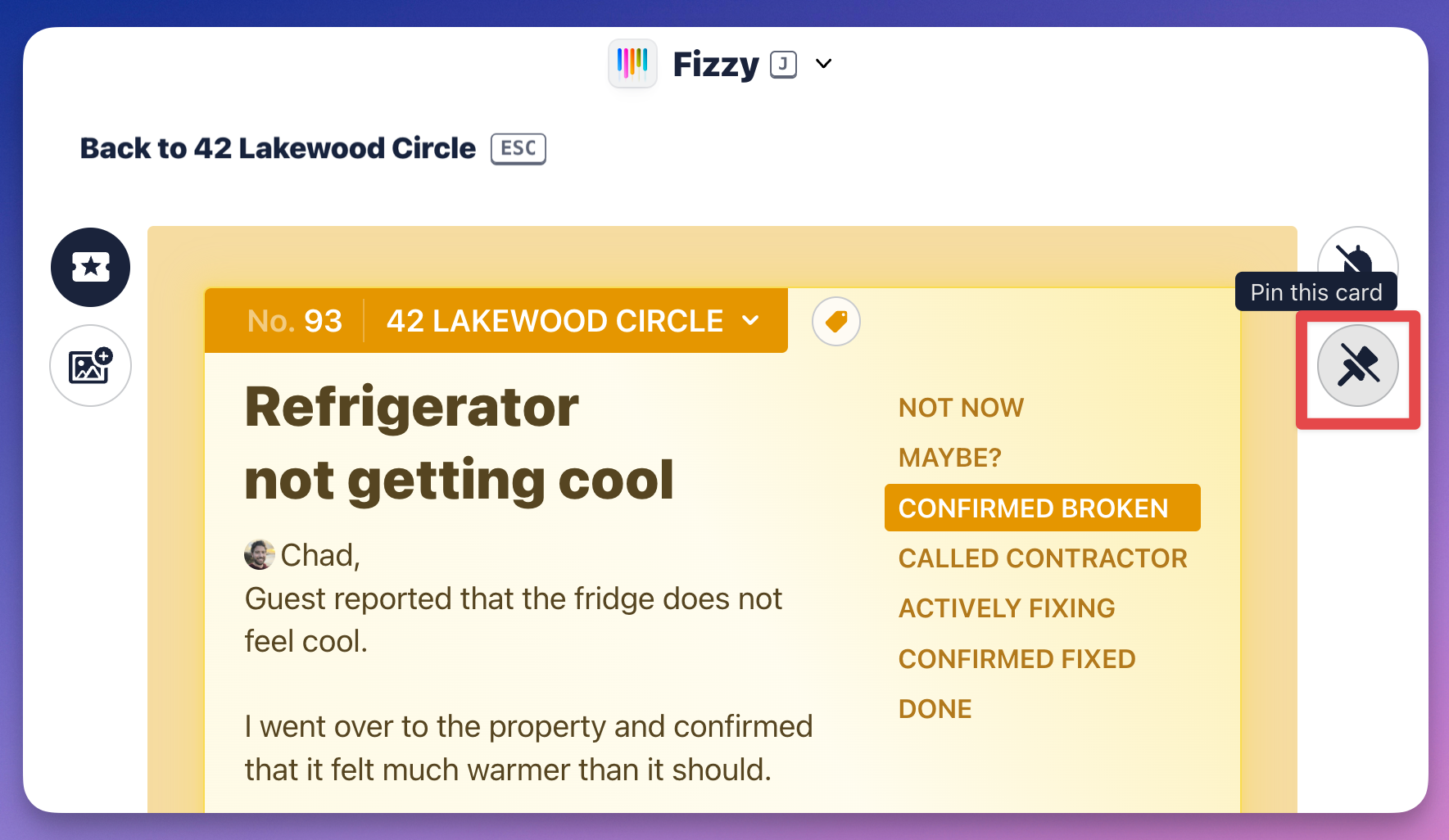
When you click the Pin stack, your cards will expand and you'll see "pin" icon located to the right of the cards — you'll click those to unpin cards.

Open a closed card
To reopen a card:
- Click and drag the card out of the DONE column to another
- Click the Undo link located beneath the closed card.

Adding a Background
51 words
Move Filters
Open Filters
Organize your cards quickly using Fizzy's filters.
From any board, use the filter at the top to see just the cards that are relevant to the work you're doing now.
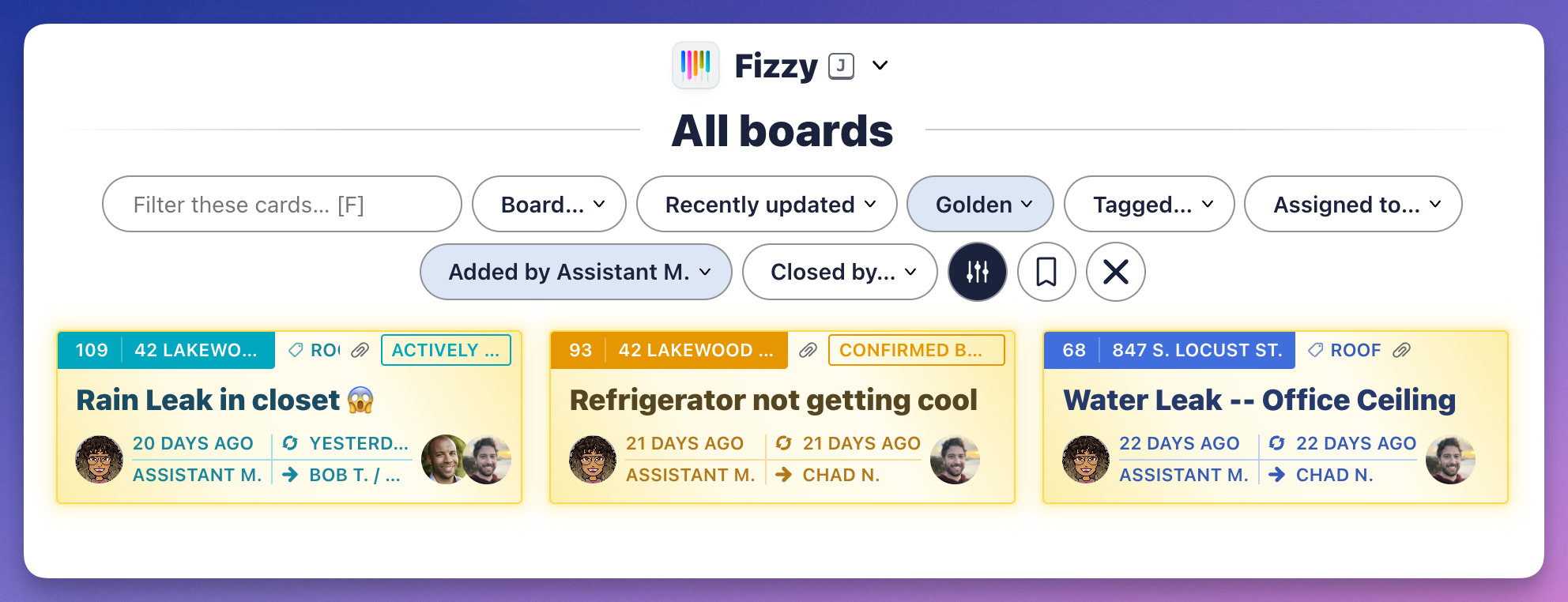
Let's say you only want to see Golden Ticket added by a specific person — click the "filter" icon located at the top to expand the filters.
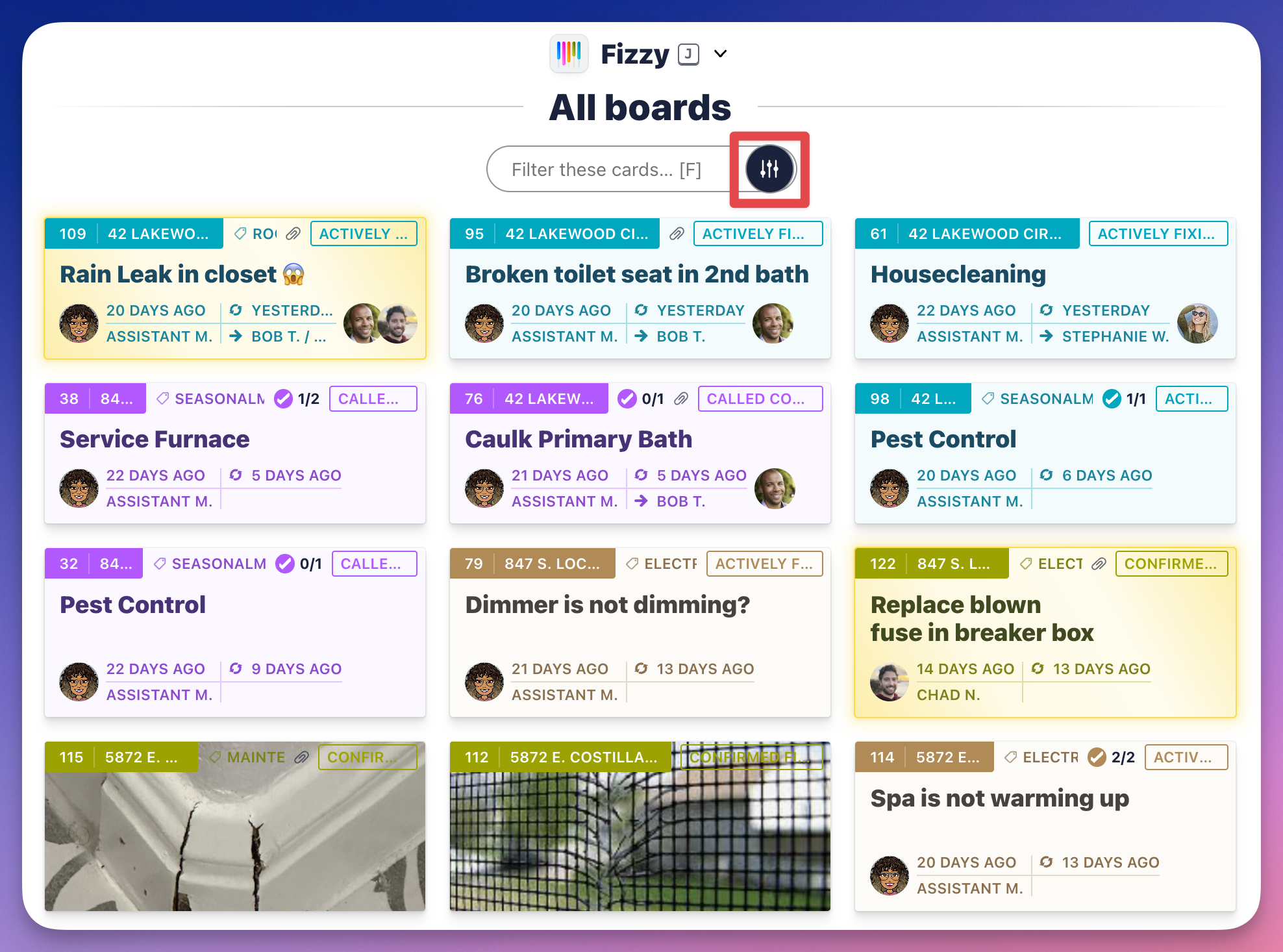
Click the Status filter and select Golden. Filter it further by clicking the the Added by filter and selecting a person. Now, you'll only see all the Golden Tickets added by that person.
Filters
101 words
Move Adding a new column
Open Adding a new column
Instantly see the status of your cards with columns. By default, boards start with three columns: NOT NOW, MAYBE?, and DONE.
Cards are created in the MAYBE? column. From there, you'll make the decision to work on it or move it straight to the NOT NOW column off to the left.
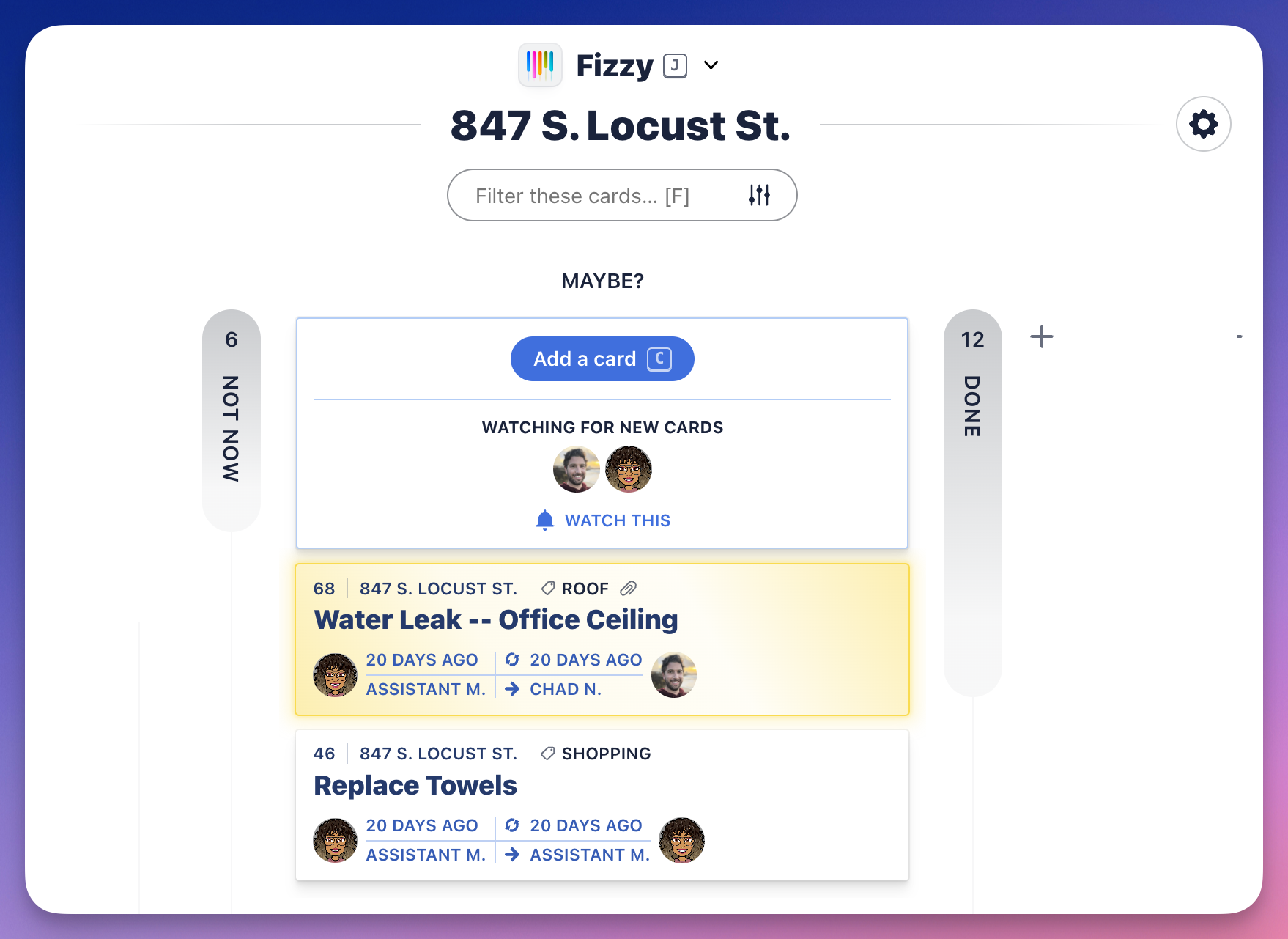
Add a column
You'll likely need other columns to represent your cards' statuses. To add a new column:
- Click the little
+ to the right of the DONE column.
- Name the column.
- Pick a color.
- Click the Add column button.
Adding a new column
131 words
Move Viewing Cards
Open Viewing Cards
See all cards in a column
Expand and collapse columns by clicking the column. When a column is expanded, you'll see a "grid" menu icon located on the top-right of an expanded column. Click that to see all the cards in a column.

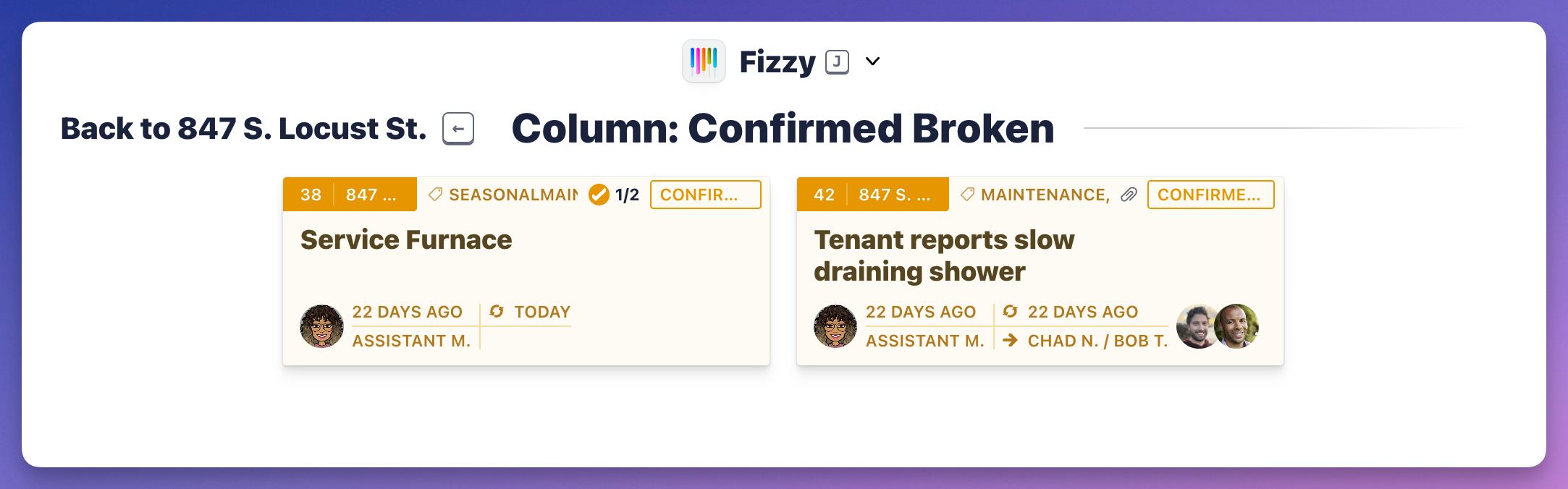
Viewing Cards
70 words
Move Editing, Moving, & Deleting
Open Editing, Moving, & Deleting
You can edit, move, or delete any column you've created.
With a column expanded, hover over the column, and the more options menu ••• will appear on the top left. Open that menu to make your changes.
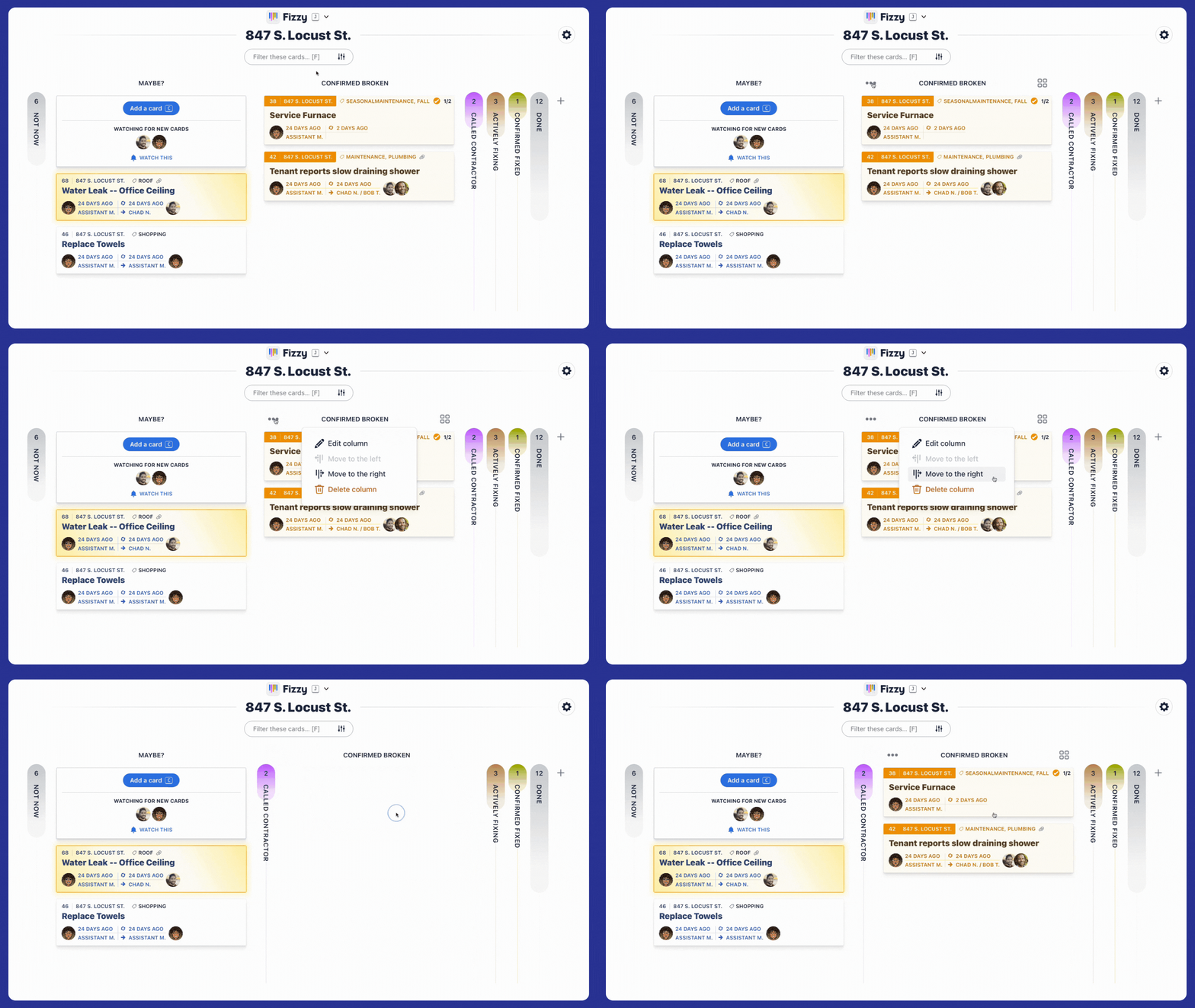
When a column is deleted, the cards within will move back to the MAYBE? column automatically.
Editing, Moving, & Deleting
69 words
Move Account Settings
Open Account Settings
Fizzy keeps it simple here. This is where administrators can change the account name, manage people, adjust auto close settings, export data, and manage the account subscription. Everyone can invite new people to the account here as well.
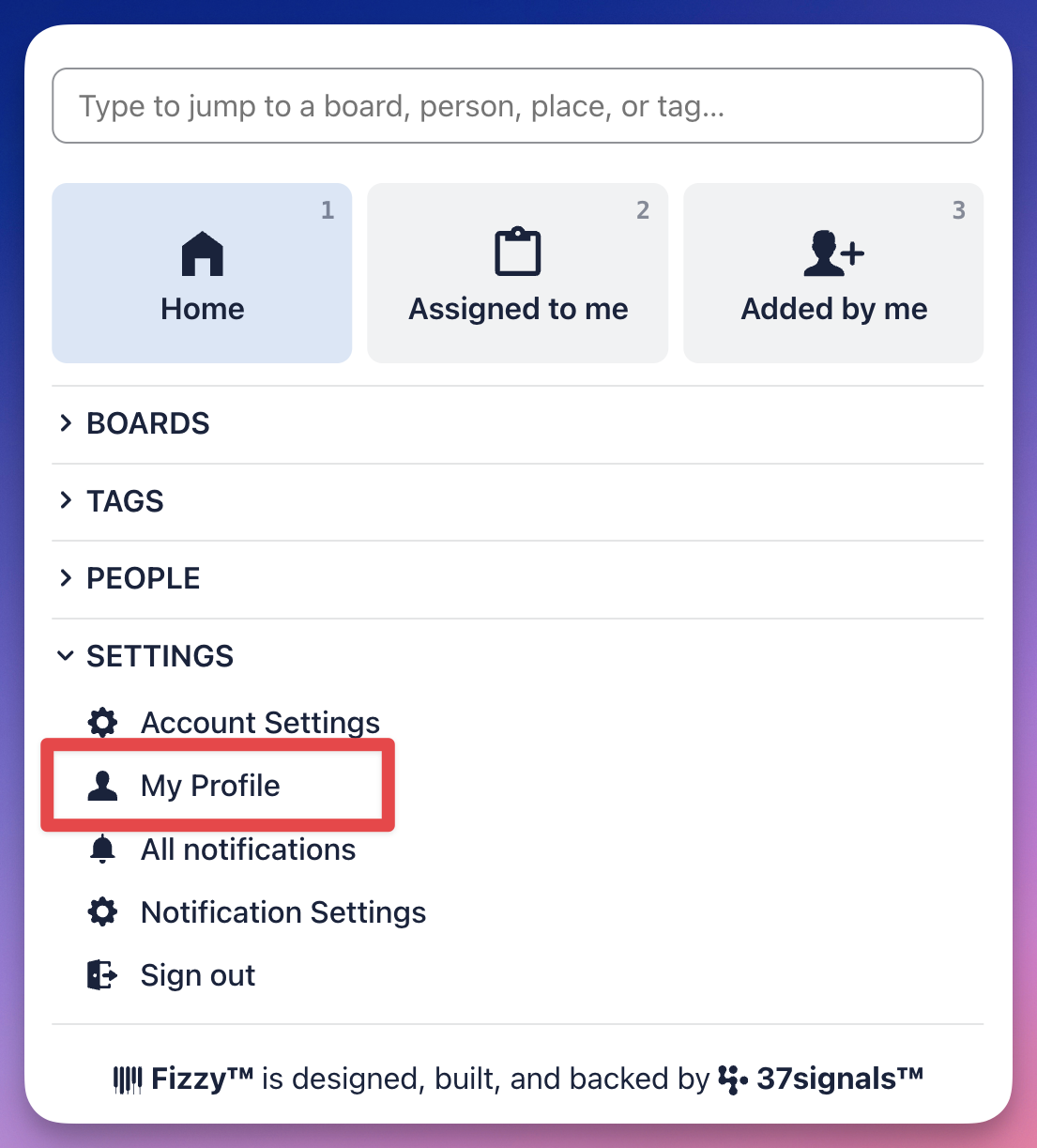
Open the Fizzy menu (J) and click the Account settings option located in the Settings section.
To change the account's name, click the current account name and after you're done typing, hit return (Mac) or enter (Windows) on your keyboard on your keyboard or click the "arrow" button to save your changes.
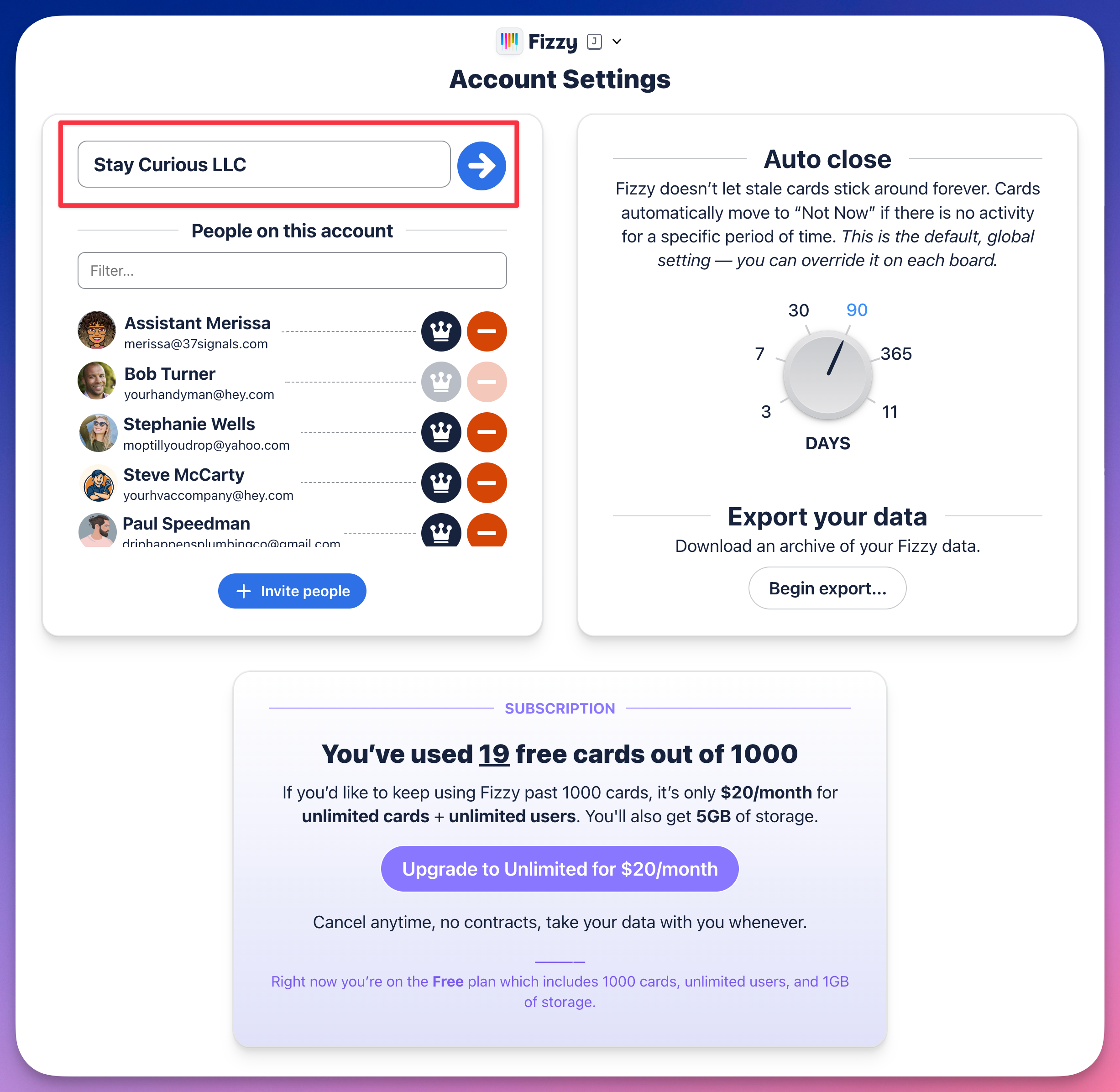
Account Settings
91 words
Move People & Permissions
Open People & Permissions
Invite people
To make it easier for everyone, anyone can invite people to the account by clicking the + Invite people button at the bottom left.
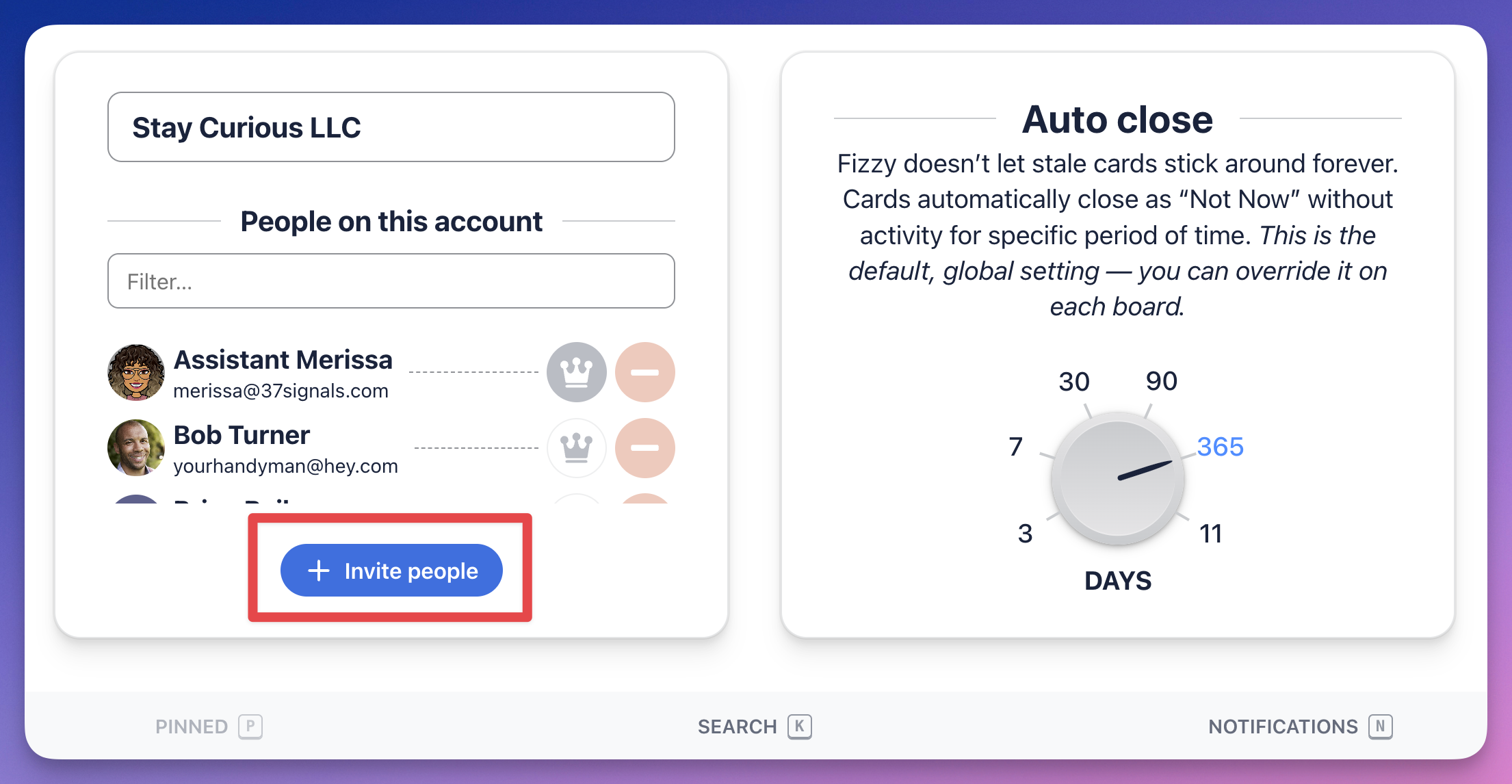
Remove people
If you're an administrator, click the "minus" icon located to the right of a person to remove them from the account.
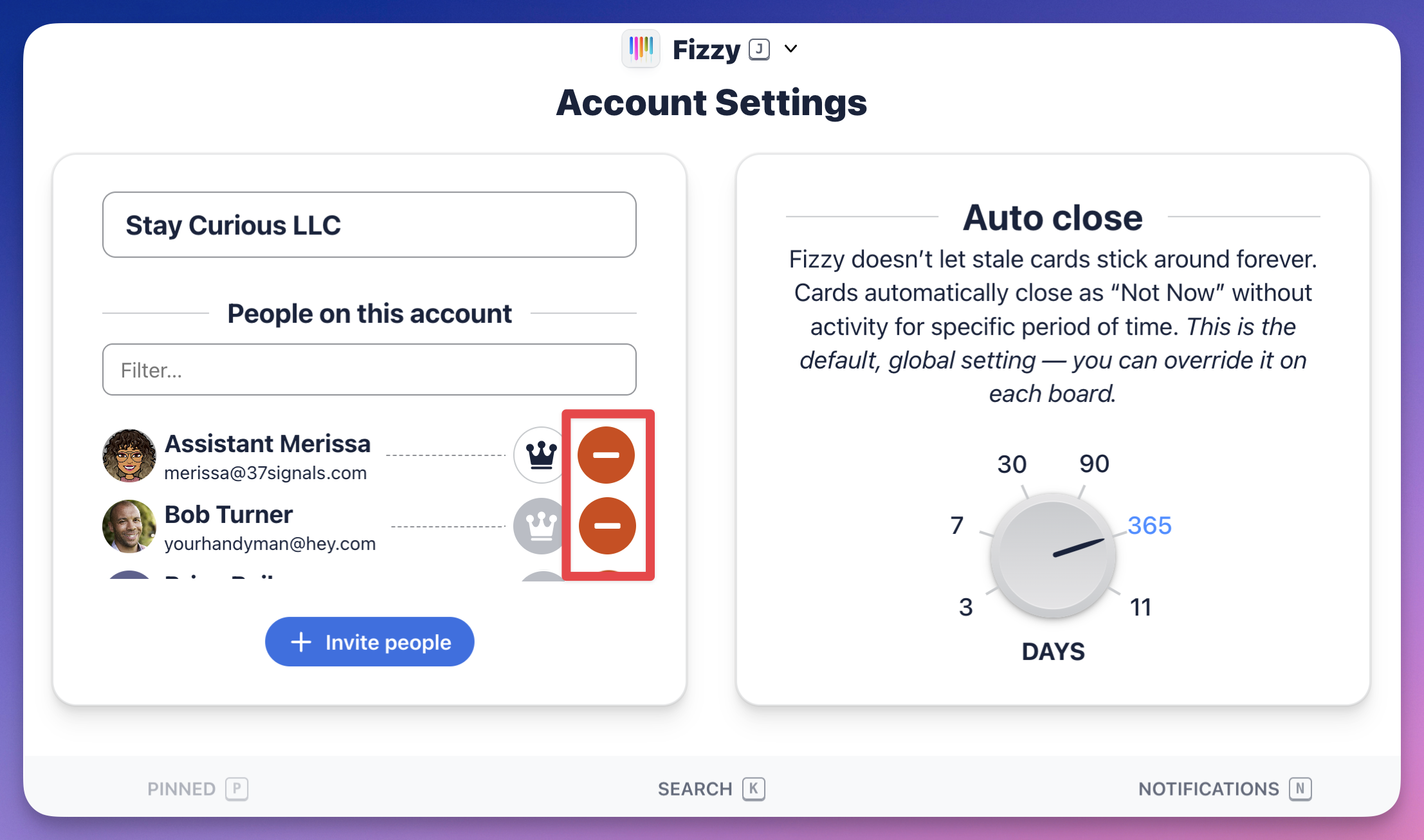
Make someone an administrator
Administrators can change the account name, manage people, and change the auto close and board settings. Share this power with others by clicking the "crown" icon to the right of their name.

To override that global auto close setting, administrators or the board creator will access the board settings by clicking the "gear" icon located to the top-right of a board and change the number of days th
Auto close
183 words
Move My Profile
Open My Profile
Your profile is where you'll see everything about you — your personal information, the cards you're a part of, how you want Fizzy to look, your link to get logged in on a different device, and what you've been up to in Fizzy. You can sign out of Fizzy here too.
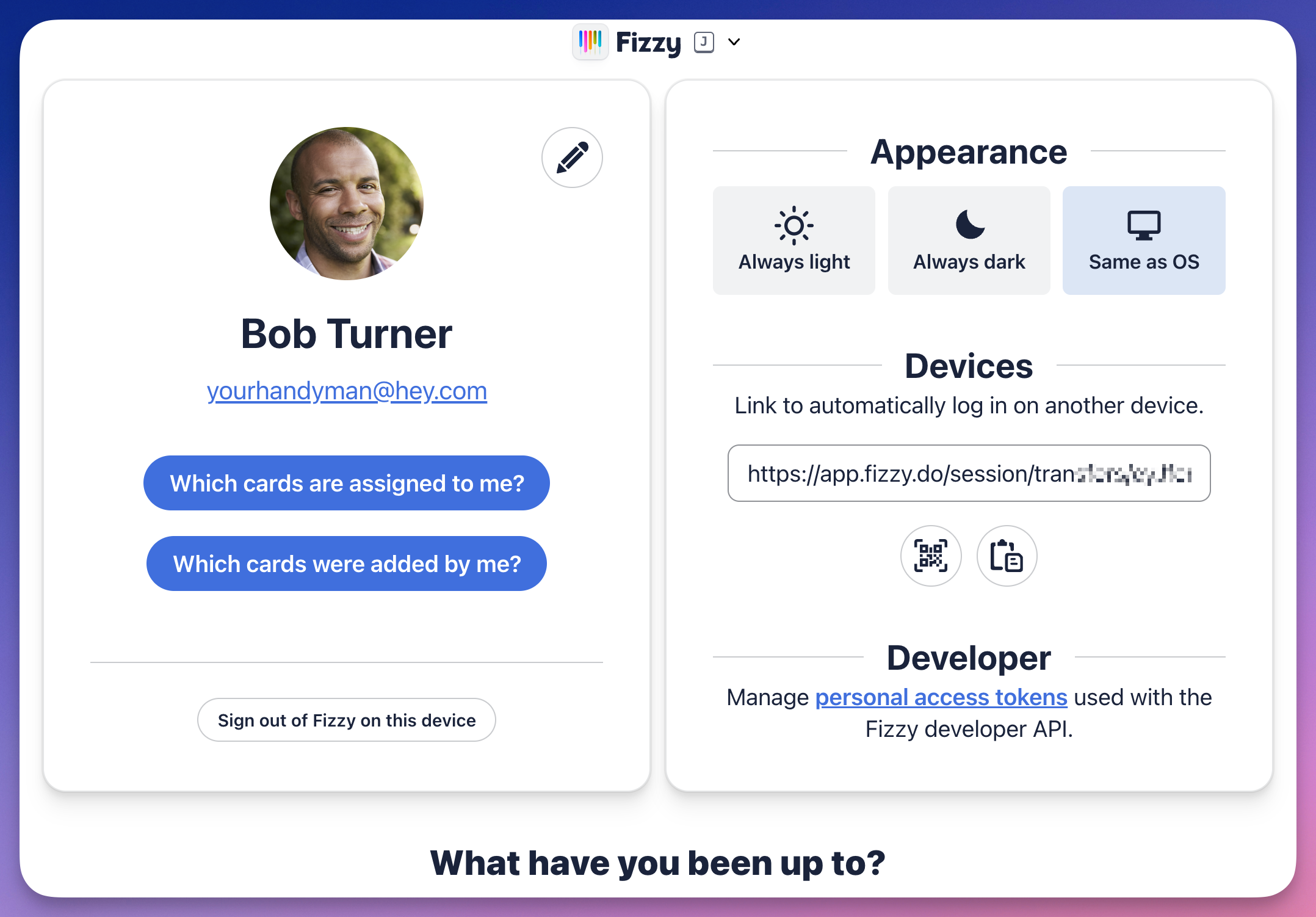
To get there, you'll open the Fizzy menu (J) and click the My Profile option located in the Settings section.
To edit your profile, click the "pencil" icon located to the right of your avatar to edit your name, change your email address, and upload your avatar image.

Click the stack to see all of your new notifications. You'll also see options to head to your notification settings, previously read items, and clear your notification stack.
Click the See older items option to access all notifications, including your previously read ones.
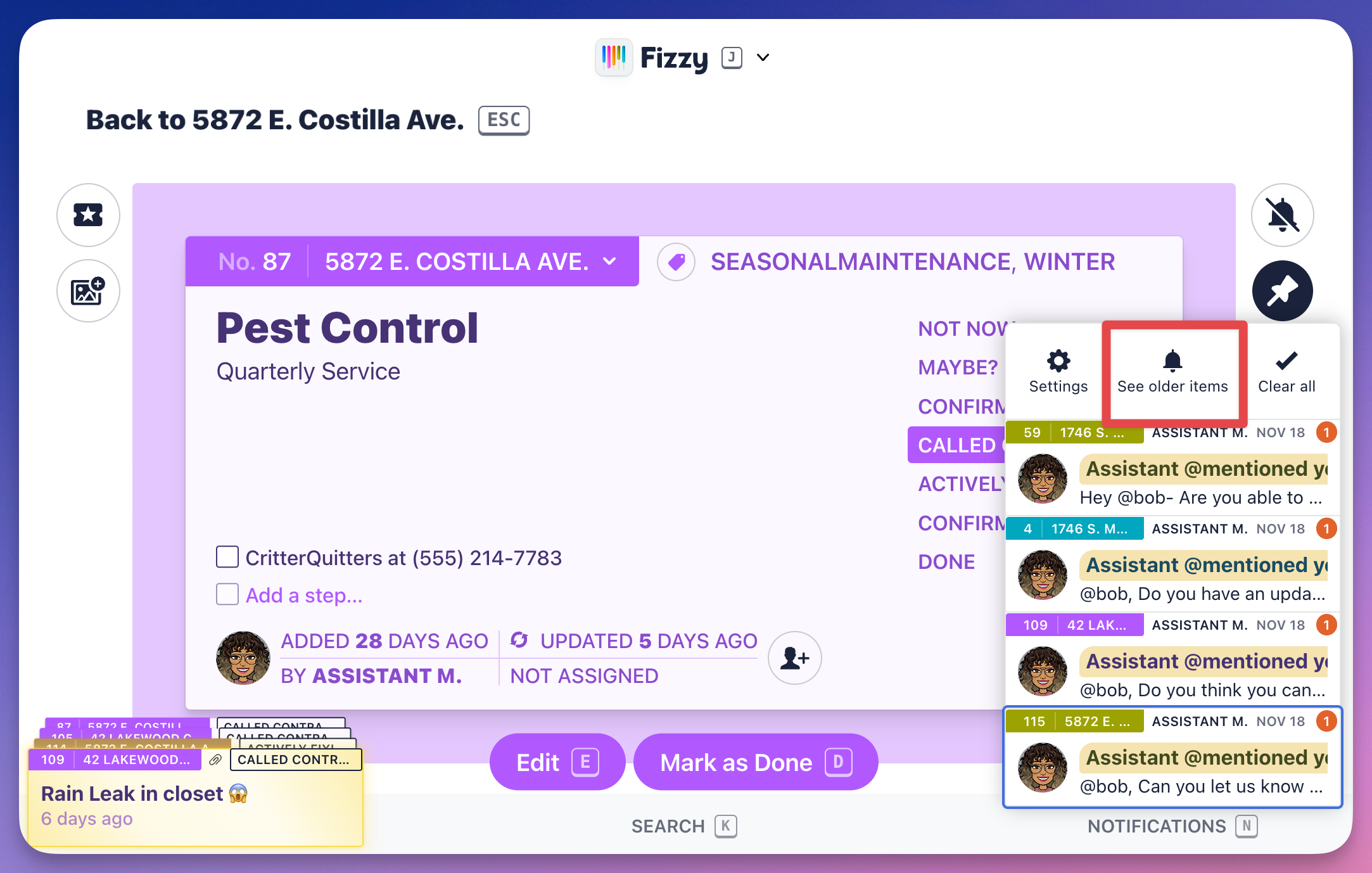
If you see some previously read notifications that you don't want to forget about, pop them into your notification stack by clicking t
Notifications
208 words
Move Notification Settings
Open Notification Settings
You're in charge — choose what, how, and when you're notified.
There are three places to access your notification settings: the Notifications settings in the Fizzy menu (J); the "gear" icon on your Notifications page; or the Settings option in Notification tray on bottom navigation bar.
Here you can choose which boards you're notified about, enable push notifications, and decide how often you'll receive email notifications.
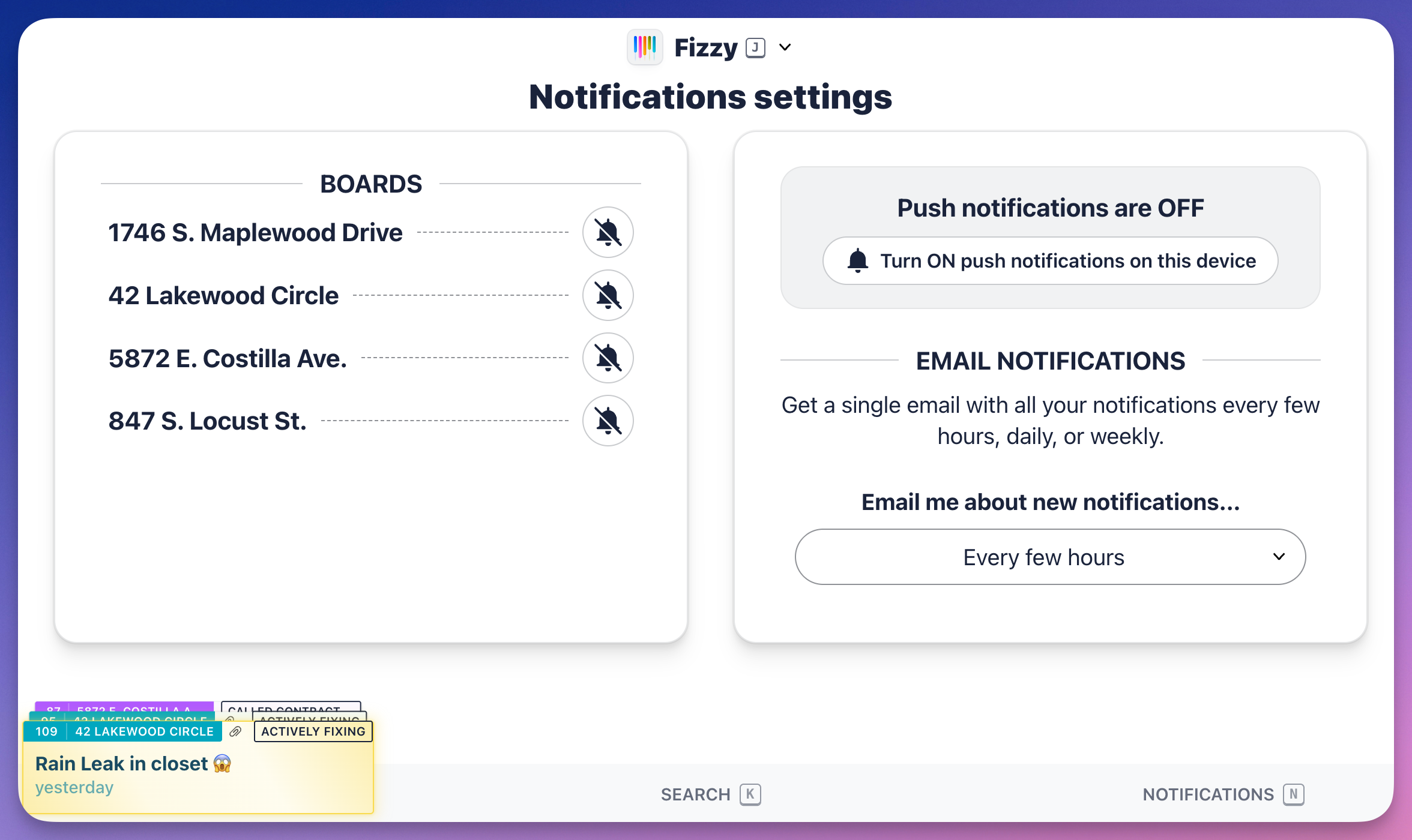
Push notifications are controlled by the browser you're using. If you're not receiving push notifications, click the Not receiving notifications? button and follow the instructions that open below.
.
Chrome
- Log into Fizzy using a Chrome browser.
- Click the 'Installation' icon in the URL bar.
- Click the Install button from the pop-up window.

Edge
- Log into Fizzy using a Microsoft Edge browser.
- Click the 'apps' icon in the URL bar.

Webhooks
91 words
Move Open Source
Open Open Source
Fizzy is Open Source and 100% free to run yourself.
Have a great idea? Submit a PR to contribute to the code base and improve the product for everyone. Our software license allows for flexible use with few restrictions.
You can view the source here.
Open Source
44 words
Move Video Walkthroughs
Open Video Walkthroughs
Fizzy tour and walkthrough 🎥
Want to learn more before signing up for an account? Get the Fizzy rundown with Jason below.
Want to see more Fizzy video tutorials? Just click the links below!
Creating cards 🎥
Fizzy is fast, simple, and colorful—and you’ll feel it the moment you create a card.
Video Walkthroughs
244 words
Move Keyboard Shortcuts
Open Keyboard Shortcuts
Use these shortcuts to move and work even faster in Fizzy.
| Action |
Shortcut key |
| Home |
1 |
| Assigned to me |
2 |
| Added by me |
3 |
| Pin |
P |
| Search |
K |
| Notification settings |
N |
| Fizzy menu |
J |
| Add a card |
C |
| Edit a card |
E |
| Add a board |
B |
| Mark as Done |
D |
| Tag a card |
T |
Keyboard Shortcuts
88 words
Move Contact us
Contact us
25 words